Tesla Browser Video Not Playing? Common Causes and Fixes
October 6, 2026 · 9 min read
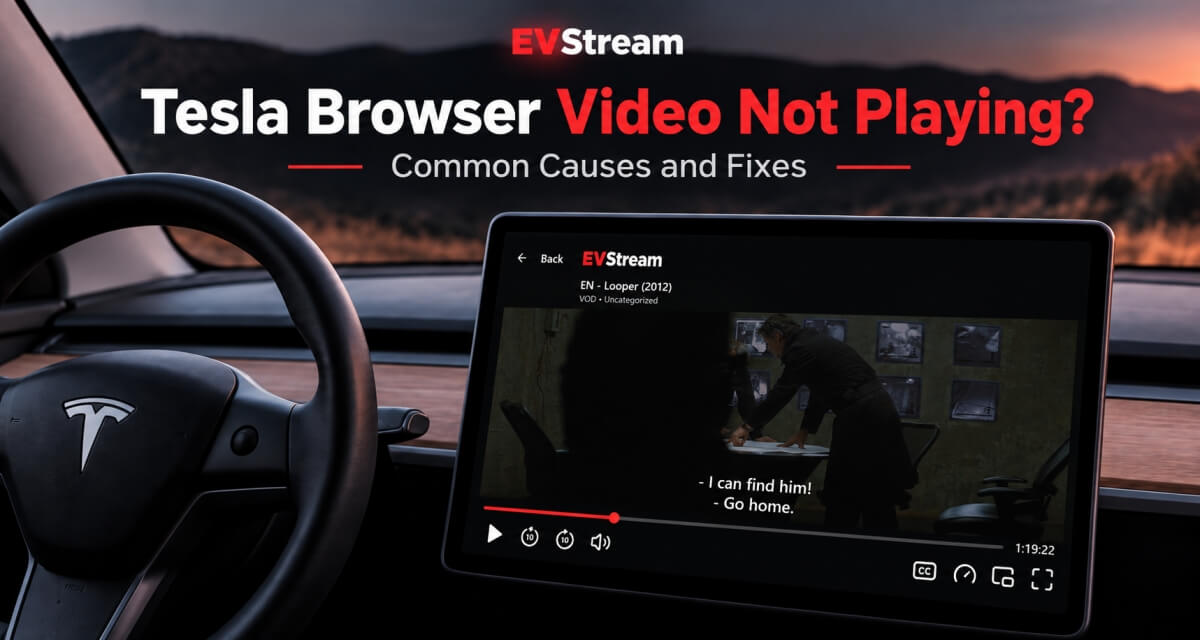
You open a video in your Tesla browser.
The website loads normally. You can see the page, the video thumbnail and maybe even the player controls.
But when you press play, nothing happens.
The page loads, the player is there - the picture never arrives.
Or the video starts and then freezes. Maybe you get a picture but no sound. Maybe the same video works perfectly on your phone or laptop but refuses to play properly in your Tesla.
That doesn't always mean the video itself is broken.
Tesla's browser is a different playback environment from the browser on your laptop or phone, and some websites, video formats and players simply behave differently inside the car.
Here are the most common reasons video may not play properly in your Tesla browser and what you can try.
First, Try Another Video
Before changing anything, open another video on the same website.
If the second video works, the browser itself is probably fine.
The problem may be related to that particular video or stream.
Different videos can use different audio formats, video formats, resolutions and streaming methods. One video may play perfectly while another does not.
This is especially common with IPTV, where channels from the same provider can sometimes use completely different stream configurations.
If every video on the website fails, keep troubleshooting.
Try the Same Video on Another Device
This is one of the easiest ways to find out whether the problem is specific to your Tesla.
Open the same video on your phone, laptop or tablet.
If it also fails there, the source or website itself may be having a problem.
But if it works immediately on another device and only fails in your Tesla browser, browser compatibility becomes much more likely.
That's useful information because it means there may be nothing wrong with your internet connection or the video itself.
The difference is the device playing it.
Not Every Video Format Works the Same in Every Browser
A web browser needs to understand both the video and audio being sent to it.
Not every browser supports every media format in exactly the same way.
A video may use a format your laptop browser handles without any problem while the browser inside your Tesla has difficulty playing it.
Sometimes the result is obvious - the video simply doesn't start.
Other times it can look a little different:
- The video loads but stays black
- Playback starts and then freezes
- You have video but no sound
- The video constantly buffers
- The player shows an error
- Some videos work while others don't
These can all have different causes, but media compatibility is one possibility.
The Website's Video Player Can Also Be the Problem
Sometimes the video format isn't the issue at all.
The website itself may use a video player designed mainly for desktop computers, phones or smart TVs.
That player may depend on browser features that behave differently inside an in-car browser.
This is why one streaming website can work well in Tesla while another one struggles, even though both work perfectly on your laptop.
There isn't always something you can change in your Tesla to fix the website's own player.
In those situations, using a player designed with Tesla and other browser-based devices in mind can make a difference.
Older Tesla Browser Versions Can Have More Compatibility Issues
Not every Tesla is running exactly the same software environment.
Older vehicles and browser versions can sometimes have more limitations than newer ones.
This matters because modern video websites change constantly.
A website may introduce a new playback method that works perfectly in the latest desktop browsers but behaves differently on an older browser environment.
If your Tesla browser has trouble with video that works elsewhere, this may be one of the reasons.
This is also one of the problems we specifically wanted to address when building EVStream.
How Flex Mode Can Help
EVStream includes Flex Mode for situations where normal browser playback isn't the best option.
Flex Mode uses alternative playback methods designed to improve compatibility across different browsers and devices, including older browser versions and older vehicles.
You don't need to understand codecs or video formats to use it.
If normal playback works well, you can leave Flex Mode off.
If a video or stream doesn't play correctly, Flex Mode gives you another playback option to try.
For browsers with full media support, normal playback will usually provide the best experience. Flex Mode is there when additional compatibility is needed.
YouTube Not Playing Properly in Tesla?
If your main reason for using the Tesla browser is YouTube, EVStream also includes its own YouTube experience designed for browser use.
Open evstream.app/youtube.
There is nothing to install.
You can search for videos, browse channels and playlists, use watch history, Continue Watching, autoplay, chapters and other YouTube-style features directly from the browser.
Videos are also played without YouTube ads.
If that's what you're looking for, we have a full guide here: How to Watch YouTube in Your Tesla Without Ads
You can also see more useful Tesla browser websites and apps in our guide: Best Tesla Browser Apps and Websites You Should Try
What If IPTV Isn't Playing in Your Tesla Browser?
IPTV adds another layer because different IPTV providers can use very different stream formats.
One provider may work perfectly in normal browser playback while another requires a different playback method.
Even channels from the same provider can behave differently.
EVStream lets you connect your existing IPTV provider and watch Live TV, movies and series directly from the browser.
You can connect using evstream.app/connect.
EVStream does not provide IPTV subscriptions or channels. You bring your existing provider and EVStream provides the player.
If you want to learn more about using IPTV inside the car, read Watch IPTV in Your Tesla and EV Browser.
Video Works but There Is No Sound
This is a slightly different problem.
If the picture is playing normally but you can't hear anything, the browser may be able to handle the video format but not the audio format being used.
This happens fairly often with IPTV streams because different channels may use different audio codecs.
Before assuming the channel is broken, test the same stream on another device or player.
We have a full troubleshooting guide for this problem: IPTV Has Video but No Sound in Your Browser? Here's Why and How to Fix It
Check Your Internet Connection Too
Not every video playback problem is caused by the browser.
If the video starts but keeps stopping, loading or freezing, your internet connection may be involved.
A simple test is to connect your Tesla to another network.
For example, try your phone's mobile hotspot.
If the exact same video works through the hotspot but not through your usual Wi-Fi connection, the browser probably isn't the main problem.
The network changed - and so did the result.
We've written a separate guide about this type of problem: IPTV Not Working on Wi-Fi but Works on Mobile Data? Here's How to Fix It
Try Refreshing the Page
Sometimes the simplest fix works.
Refresh the website and try the video again.
If that doesn't help, close the browser page, reopen it and return to the video.
Temporary loading problems can happen, especially if the browser has been open for a long time or the internet connection changed while the page was already loaded.
It's worth trying before spending time on anything more complicated.
How to Find the Problem Quickly
You don't need to guess.
Try these tests in order.
1. Try another video
If other videos work, the problem may be the specific video or stream.
2. Try the same video on another device
If it works elsewhere but not in Tesla, browser or device compatibility becomes more likely.
3. Try another network
Use a mobile hotspot. If the video suddenly works, investigate the original internet connection.
4. Refresh the page
Rule out a temporary loading problem.
5. Try another playback method
If you're using EVStream and normal playback isn't working properly, try Flex Mode.
The important part is to change one thing at a time.
If you change the website, device, internet connection and playback method all at once, you won't know what actually solved the problem.
Why EVStream Was Built for This
EVStream started with a simple problem - browsers don't always handle every video stream equally well.
That becomes even more noticeable inside Tesla and other in-car browsers.
So instead of assuming standard browser playback will work for everything, EVStream includes additional playback compatibility options.
You can use EVStream for:
- YouTube without ads
- Your existing IPTV provider
- Live TV
- Movies and series
- Browser games and other web apps
And there is nothing to install.
For IPTV users, EVStream also includes alternative playback handling for streams that normal browser playback may struggle with.
If you're looking for a browser-based IPTV player, you can also read our guide to the best IPTV player for browser streaming.
Can EVStream Fix Every Video Playback Problem?
No player can fix every possible problem.
If the source video is offline, the IPTV provider is sending a broken stream, or your internet connection isn't stable enough to receive the video, changing players won't magically repair the source.
But if the video works elsewhere and the problem comes from browser playback or media compatibility, using a player with alternative playback methods can make a real difference.
That's exactly where EVStream and Flex Mode are designed to help.
Frequently Asked Questions
Why won't videos play in my Tesla browser?
There can be several reasons, including the video's format, the website's player, browser compatibility, an older browser environment, or your internet connection.
Try another video, another device and another network to narrow down the cause.
Why does a video work on my phone but not in my Tesla?
Your phone and Tesla don't necessarily use the same browser environment or media support.
If the exact same video works on your phone but not in Tesla, compatibility with the Tesla browser may be the issue.
Can an older Tesla have more video playback problems?
Older browser versions may have more difficulty with some modern websites and media formats.
EVStream includes Flex Mode specifically to provide additional playback compatibility when normal playback isn't working well.
Why does video play but there is no sound?
The browser may support the video's picture but have trouble with the audio format being used.
This is particularly common with IPTV streams where channels can use different audio formats.
Can EVStream play YouTube in a Tesla browser?
Yes.
Open evstream.app/youtube directly from the Tesla browser. EVStream provides an ad-free YouTube experience designed with Tesla and other browser-based devices in mind.
Does EVStream provide IPTV channels?
No.
EVStream is the player. You need your own IPTV provider and subscription.
Final Thoughts
If video isn't playing in your Tesla browser, don't immediately assume something is wrong with the car or the video.
Start with a few simple tests.
- Try another video.
- Try the same video on another device.
- Try another network.
- Refresh the page.
And if the problem appears to be related to browser compatibility, try another playback method.
EVStream was built specifically around browser-based entertainment, including Tesla and other EV browsers.
For YouTube, open evstream.app/youtube. For your existing IPTV provider, open evstream.app/connect. Or start at evstream.app.
Video entertainment should only be used when it is safe and permitted. Drivers should never watch or interact with video content while driving. Always follow your vehicle's safety guidance and applicable local laws.
Open your Tesla browser and try it today
Charge your car. Stream your favorites.
Launch EVStream.app